Core & Plugins

meinchat & Bots

1:1 and multi-party chat with rooms, plus a bot framework whose bots are first-class room members.
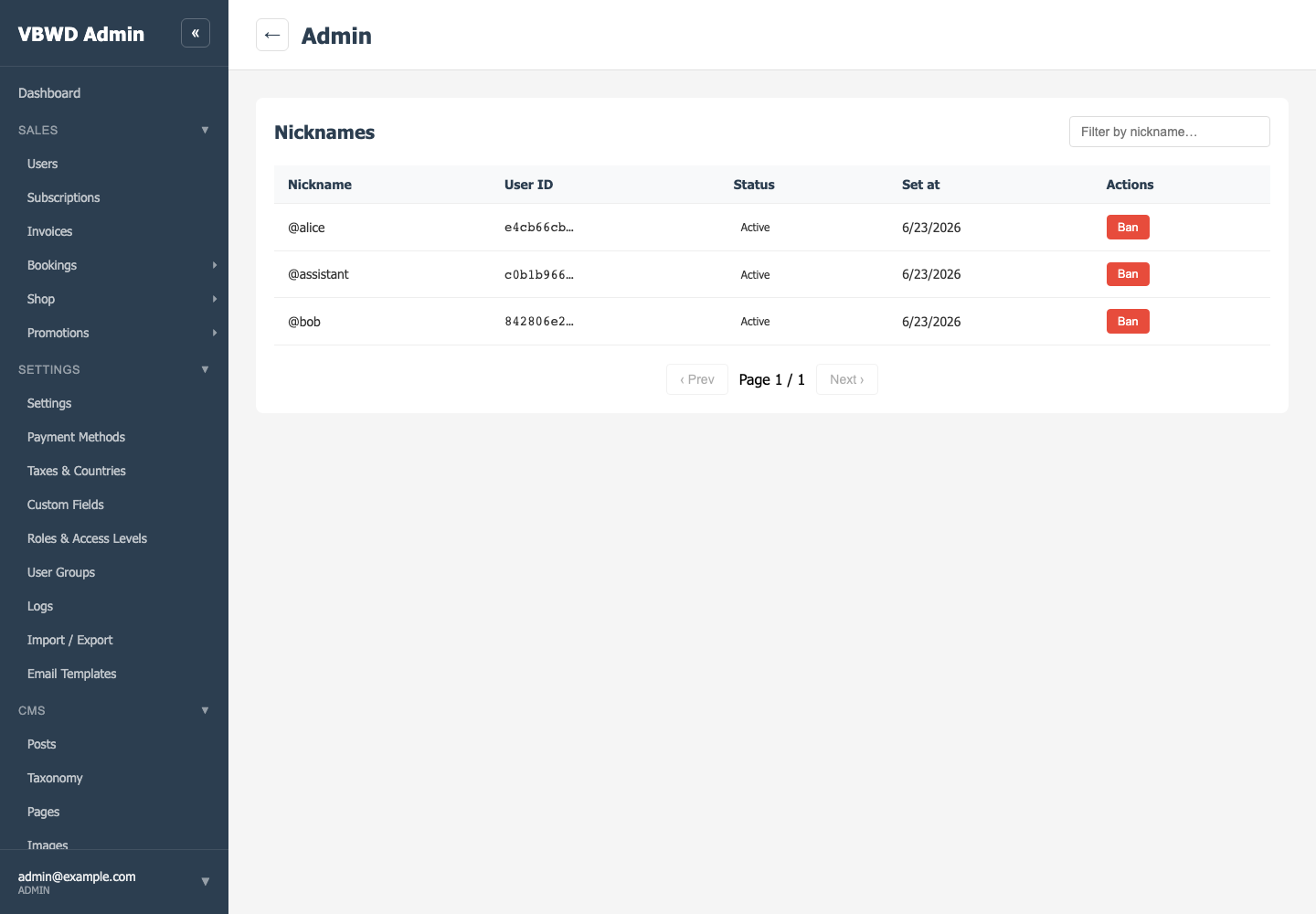
Chat nicknames in the admin (incl. the @assistant bot).

Chat & rooms

meinchat provides a nickname directory, address book, 1:1 messaging with images, peer token transfer and N-party rooms (any member can invite; only members read). meinchat_plus adds end-to-end encryption via per-recipient fan-out over existing pairwise sessions.

Bots

The bot framework (bot_base + adapters like bot_meinchat, bot_telegram) lets a bot be a room member. Bots render rich content (choices, menus, carts) through a portable meta vocab that each channel renders natively. The bot-widget is a room auto-created on “Start Conversation”, usable by public GUEST visitors.

LLM bots

bot-meinchat-llm is a RAG-grounded consultant: it answers from a document corpus + the live catalogue and recommends products, calling the LLM through the core LLM Connection Manager (no per-plugin keys).

On your phone

meinchat is fully native on mobile — the screenshots below are from the VBWD app running on an iPhone in portrait, signed in against the live backend. The same rooms, messages, token transfers and bots you see on the web render natively on the phone.
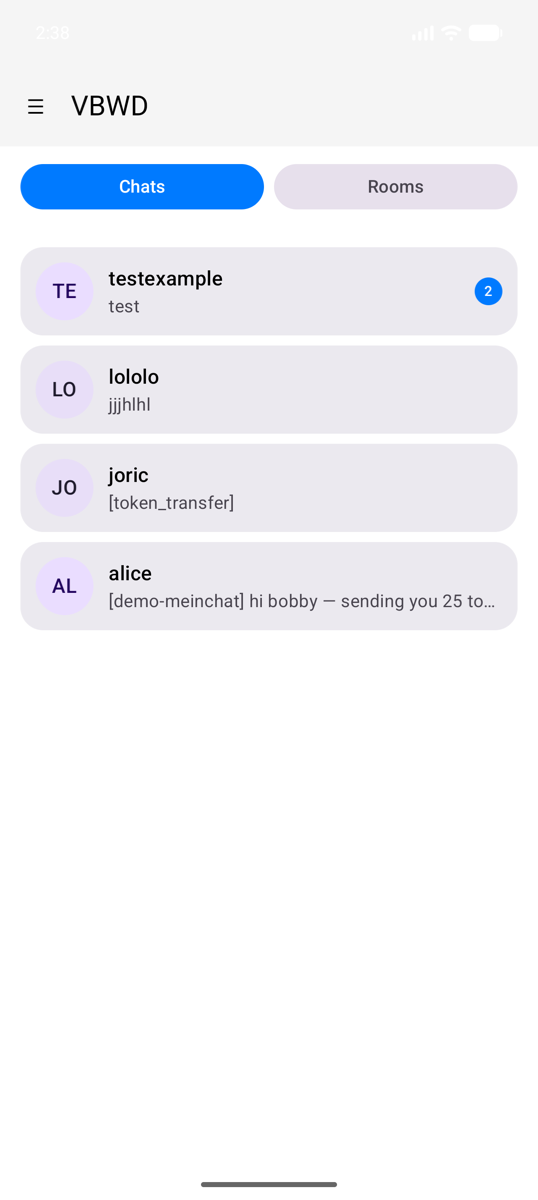
The inbox — colour-keyed conversation cards with message previews and unread badges, and the Chats / Rooms toggle. Tap + New chat to start a 1:1.
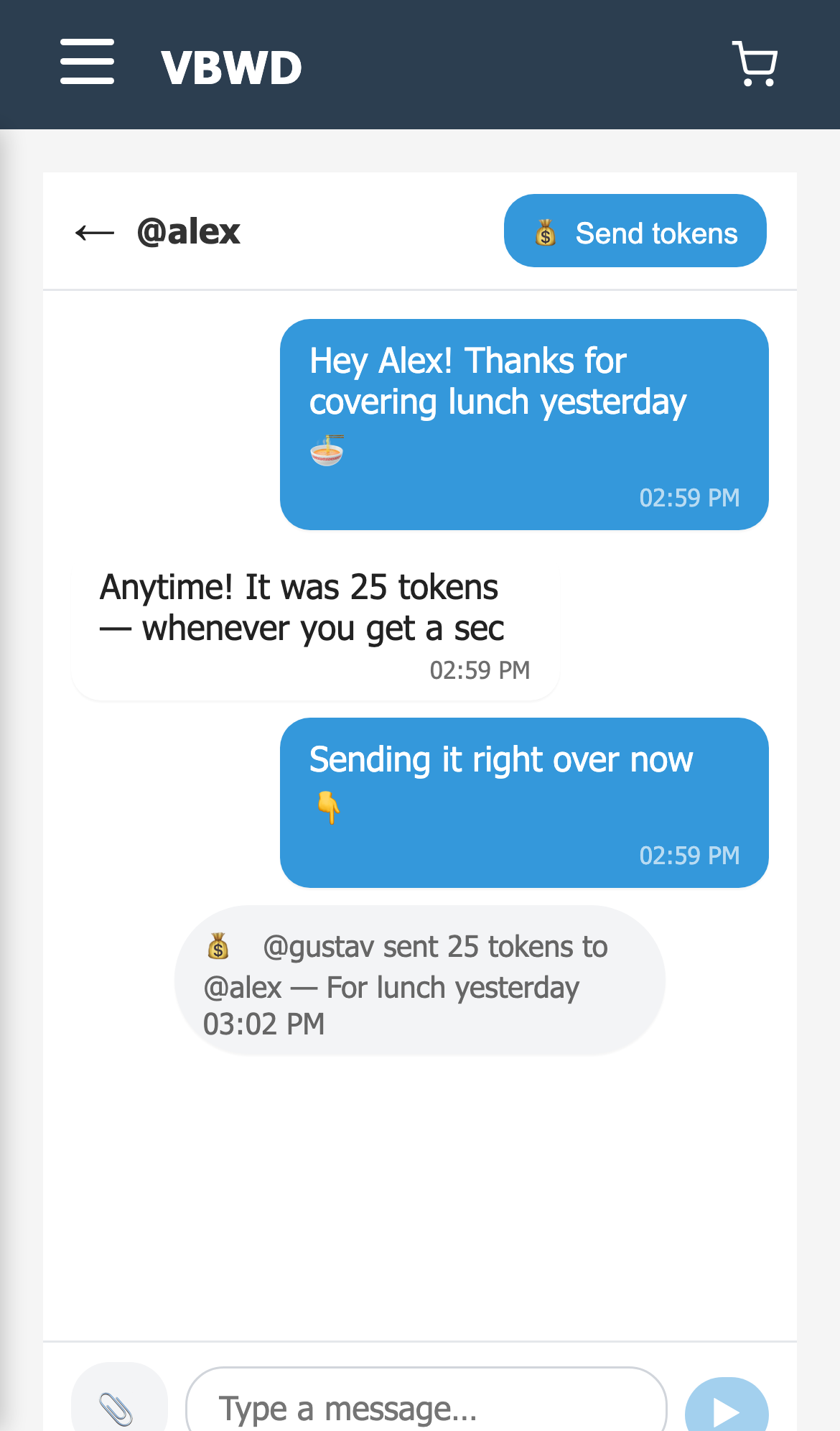
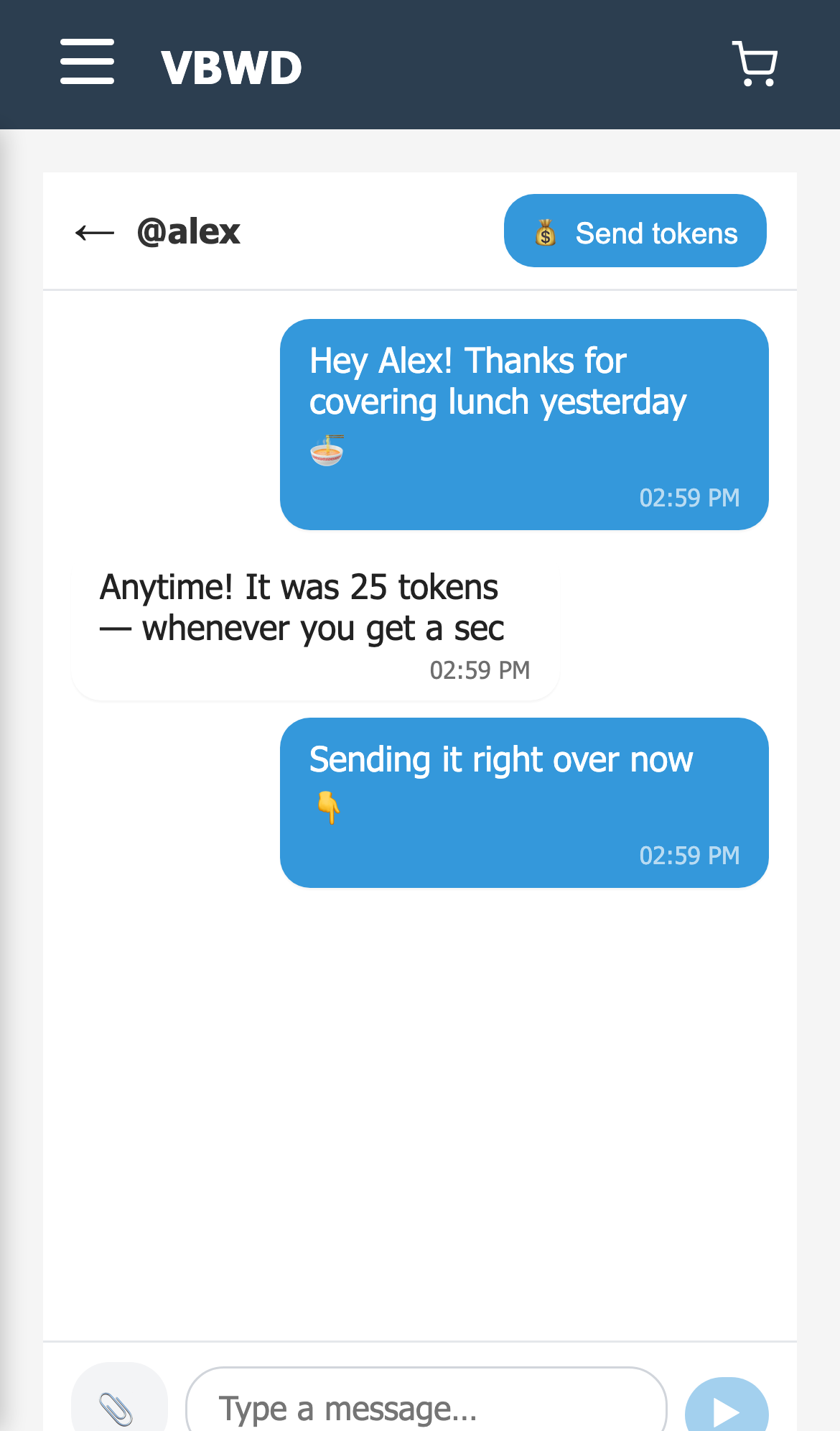
Gustav and Alex chatting 1:1 — outgoing messages in blue on the right, incoming in grey on the left, with the peer shown as @alex in the top bar, a 💰 Send tokens button, and the composer pinned below.
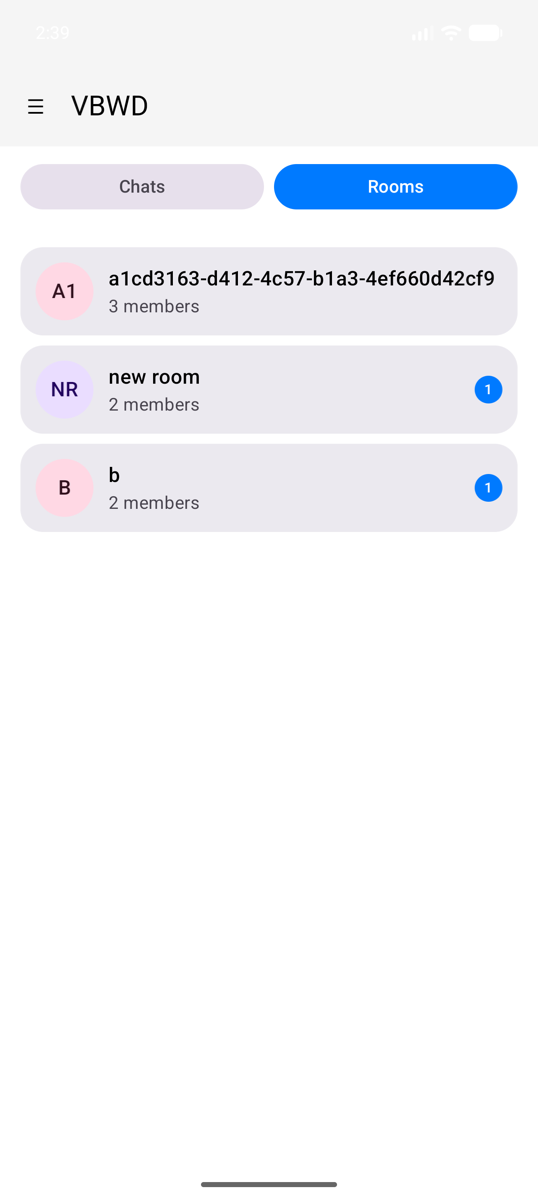
The Rooms tab — N-party rooms with member counts and unread badges. Any member can invite; only members can read. Opening a room reuses the same bubble thread as a 1:1.

Sending tokens to a friend — step by step

Tokens are VBWD's in-platform balance, and paying a peer happens right inside the chat — no separate wallet screen. Here Gustav pays Alex back the 25 tokens for lunch, end to end. Tap the 💰 Send tokens button in the conversation header, enter an amount and an optional note, and the transfer posts atomically — debiting your balance, crediting theirs, and dropping a transfer card into the thread that both of you see.
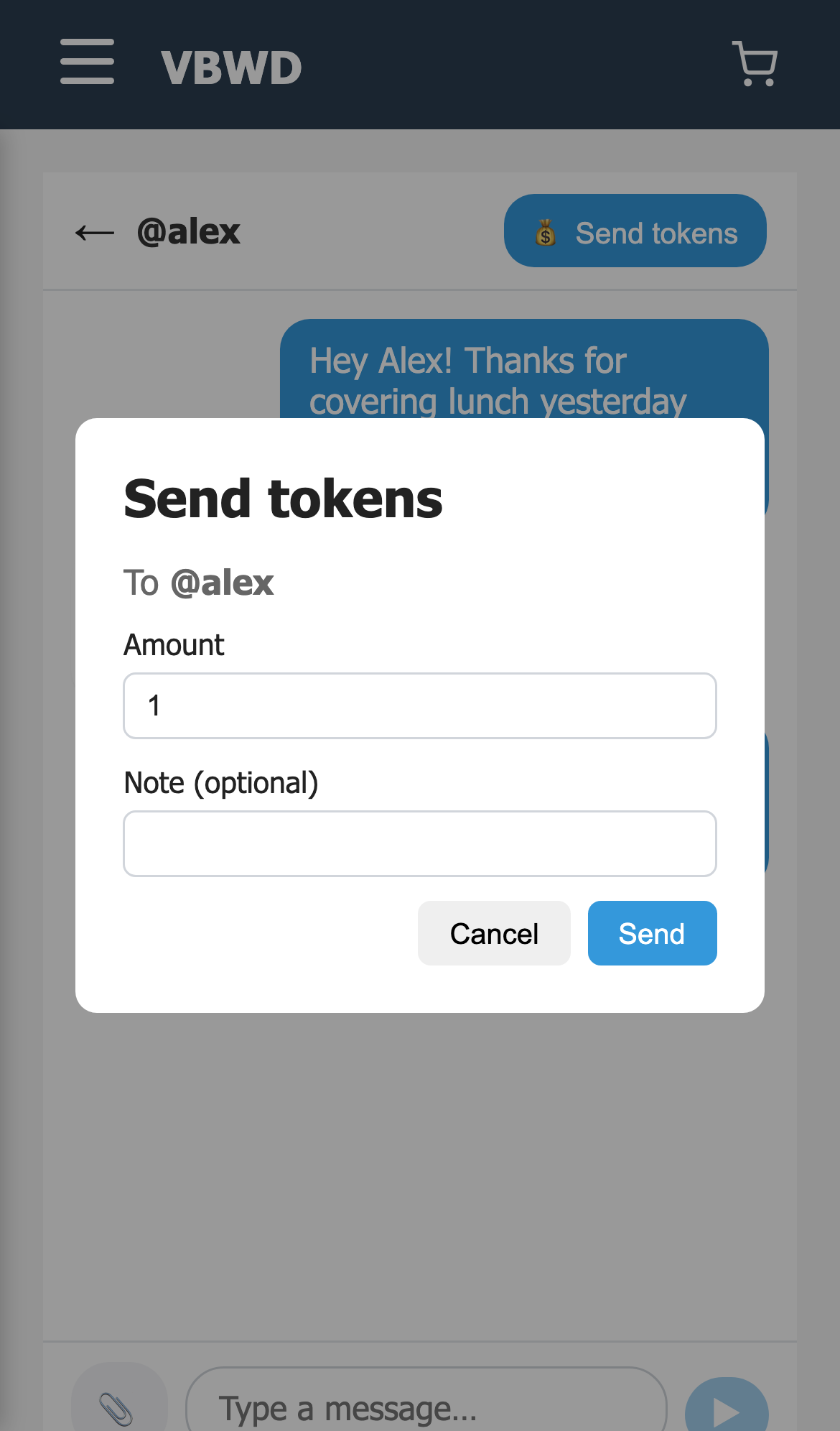
1 — In the conversation with @alex, Gustav taps the 💰 Send tokens button in the top bar to start the transfer.
2 — The Send tokens dialog opens, pre-addressed “To @alex”, with an amount field (defaulting to 1) and an optional note.
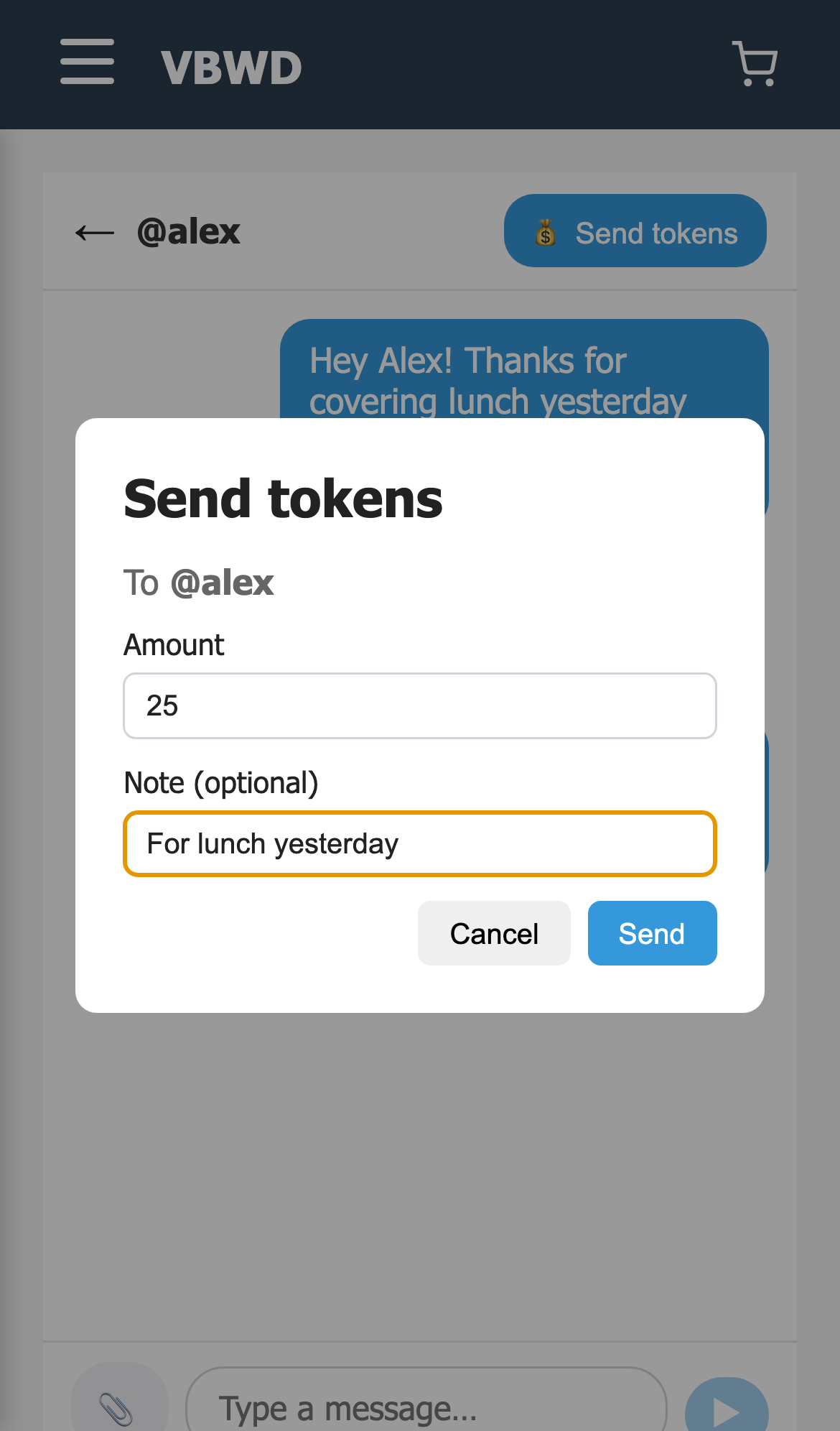
3 — Gustav enters 25 and the note “For lunch yesterday”, then taps Send. The button stays disabled until the amount is valid.
4 — The transfer settles instantly: “@gustav sent 25 tokens to @alex — For lunch yesterday” appears as a card in the thread, and Alex's balance is credited the moment it lands.