CMS AI Helper
LLM-assisted content and SEO generation inside the editor, backed by a core-managed LLM connection registry.

In-editor generation
cms-ai adds an “AI” panel to the post editor: generate article content, restyle, fill SEO blocks and generate images. The API key never reaches the browser — generation is backend-proxied. Prompts are admin-editable under ${VAR_DIR}/assets/cms-ai/prompts/.
Core LLM Connection Manager
The actual LLM call goes through the corevbwd/llm/ client and an admin-managed LlmConnection registry (Settings → “LLM Connections”). Plugins carry only an optional llm_connection_slug and call container.llm_client(slug=…) — no per-plugin keys. Keys are encrypted at rest and omitted on export.
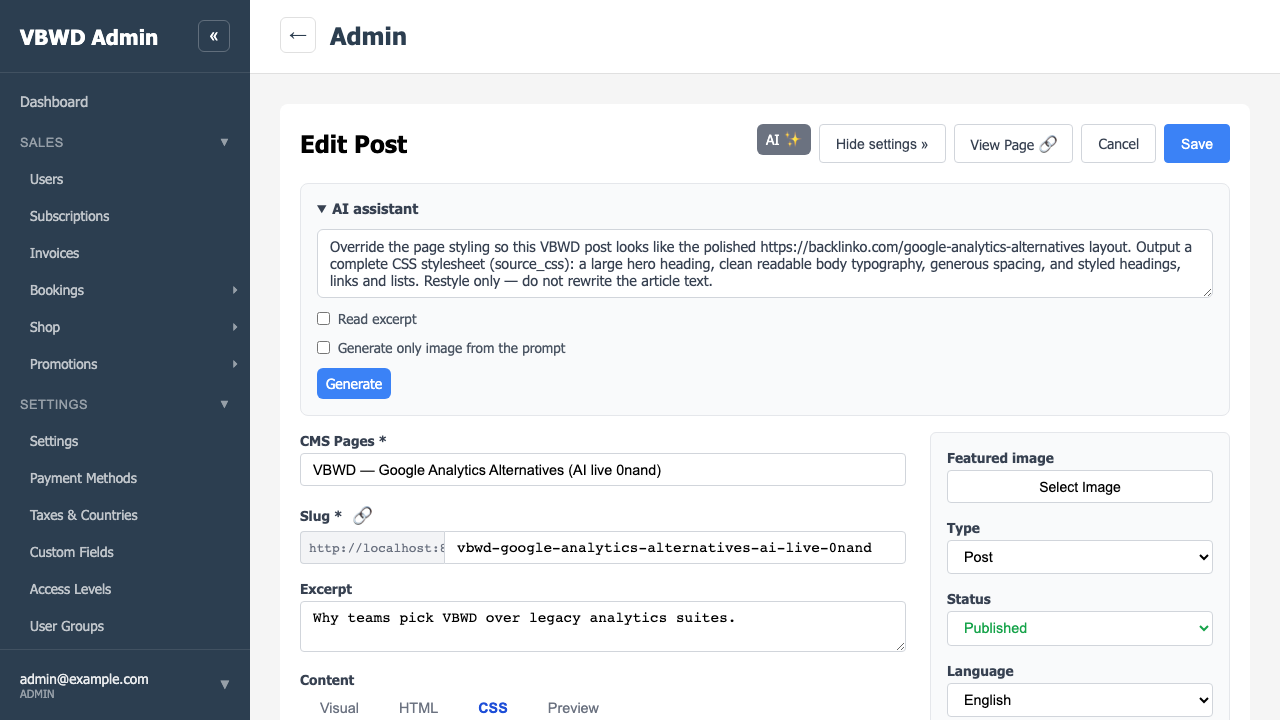
Live walkthrough
The flow below is verified live on the running stack (fe-admin :8081, fe-user :8080, api :5000) with Playwright. Real provider calls: Anthropic claude-sonnet-4-5 for /generate and Replicate black-forest-labs/flux-schnell for /generate-image — the keys never reach the browser.
Step 1 — The AI ✨ dropdown in the editor header
On the post/page editor, the AI ✨ button (registered into thecmsEditorHeaderActions seam) opens a dropdown of actions — Write an article from excerpt, Re-generate all SEO fields, Restyle the page. Observed: the dropdown renders in the header action bar.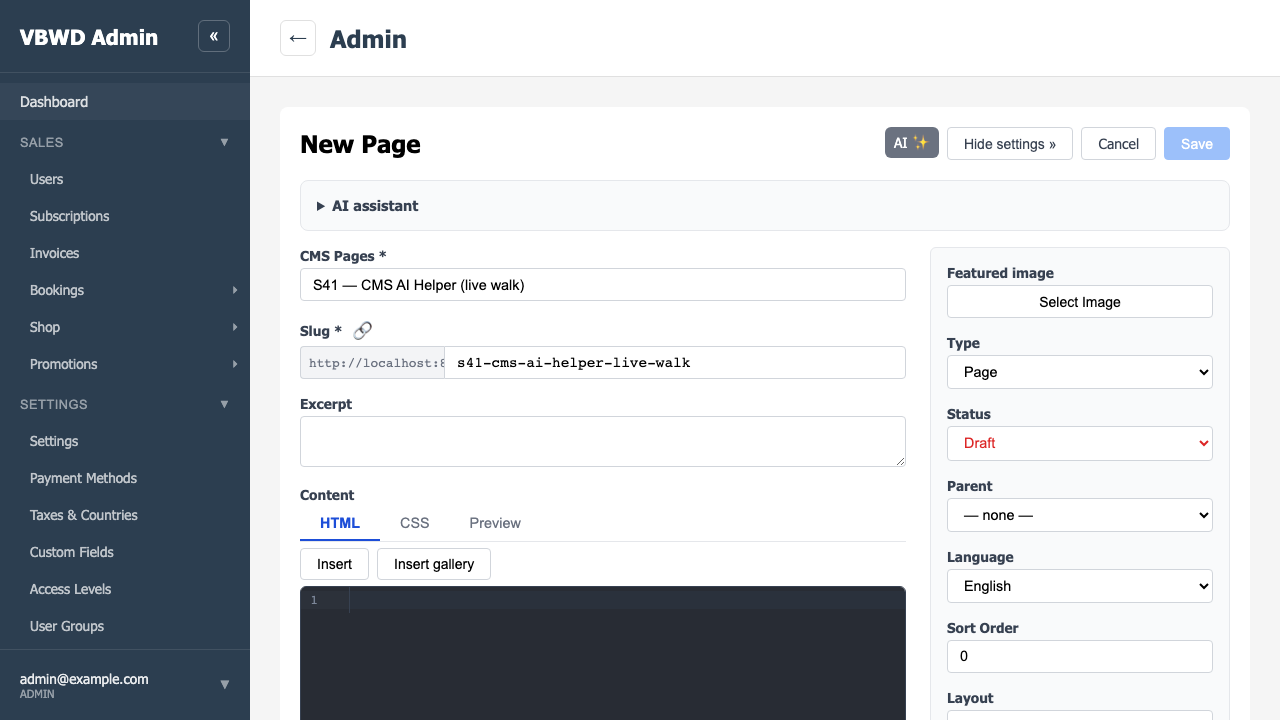
Step 2 — The collapsible AI assistant panel
Below the header (thecmsEditorPanels seam) sits the AI assistant panel: a prompt textarea, a Read excerpt checkbox, a Generate only image from the prompt checkbox, and a Generate button — styled only through the fe-core design system. Observed: the panel renders between header and body.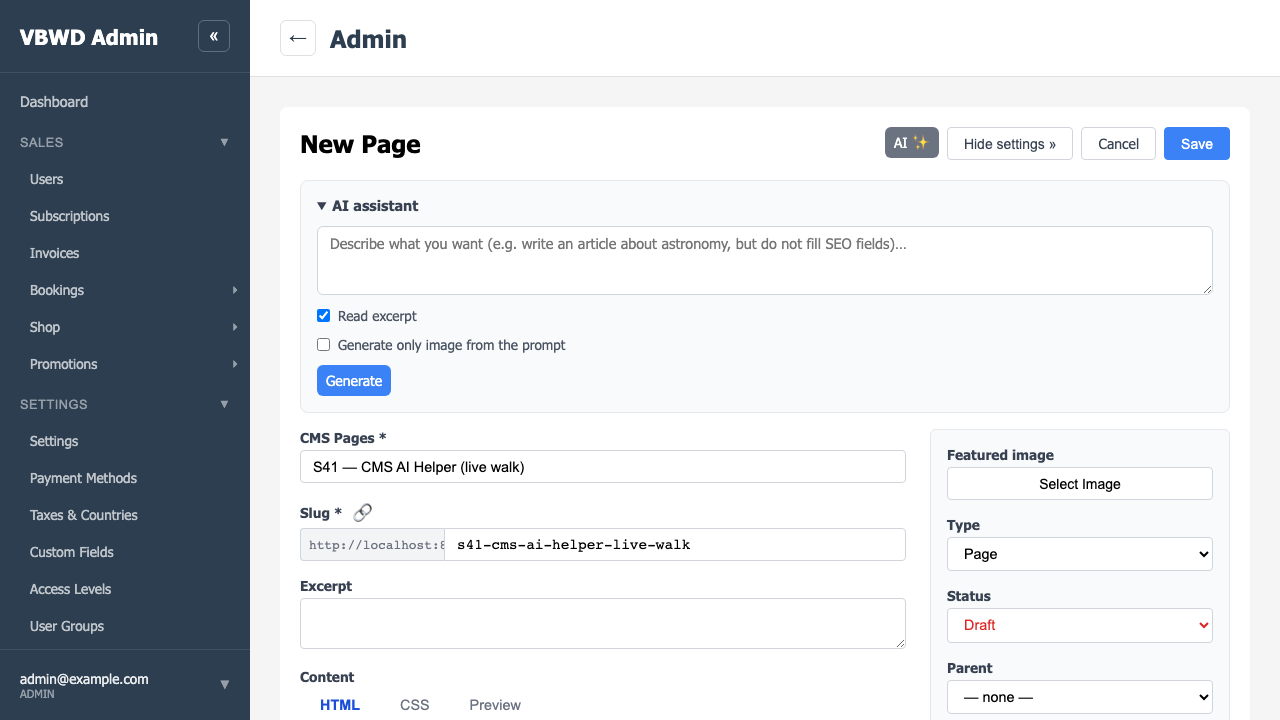
Step 3 — Image generation: the prompt (real Replicate FLUX)
With “Generate only image from the prompt” checked, an image prompt is entered and Generate clicked. The browser posts toPOST /api/v1/plugins/cms-ai/generate-image; the backend calls Replicate’s flux-schnell server-side. Observed: HTTP 200; the response carries the gallery url_path and the Replicate token never appears in it.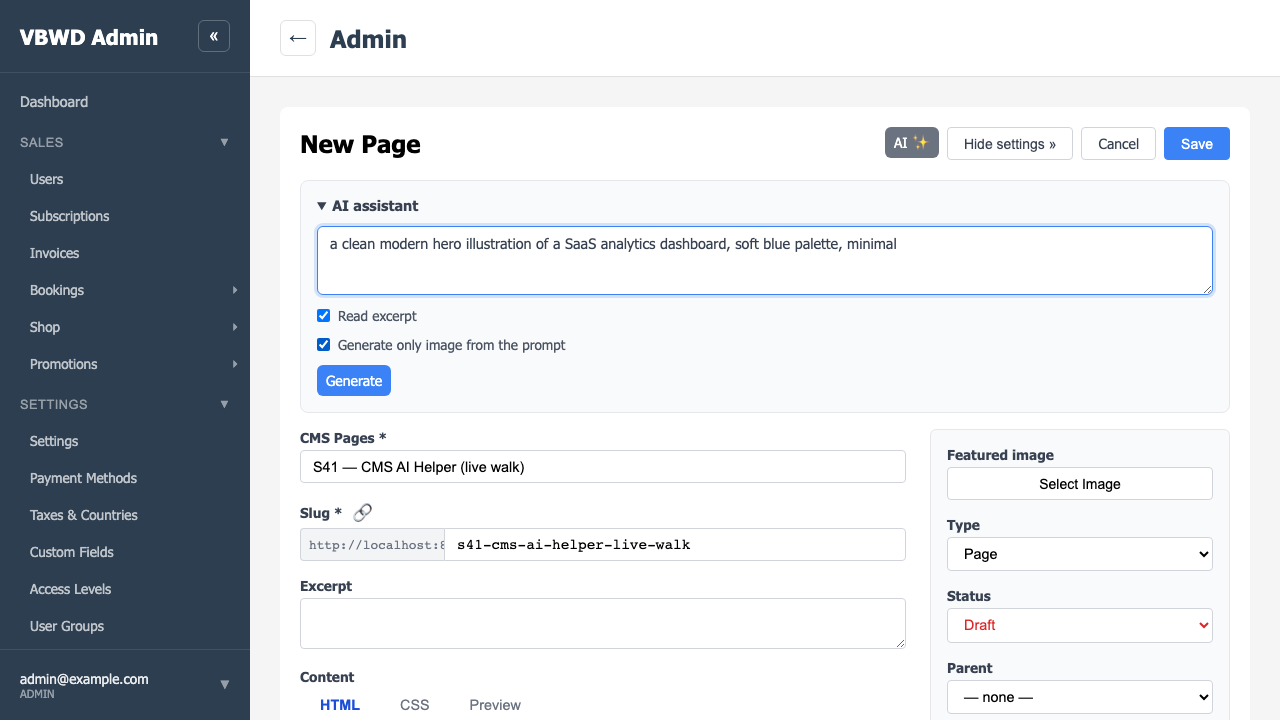
Step 4 — The image appended to the editor body
The generated image is appended tocontent_html as an <img … data-cms-image=…> referencing the gallery asset, written into the editor’s HTML tab. Observed: the image lands in the body.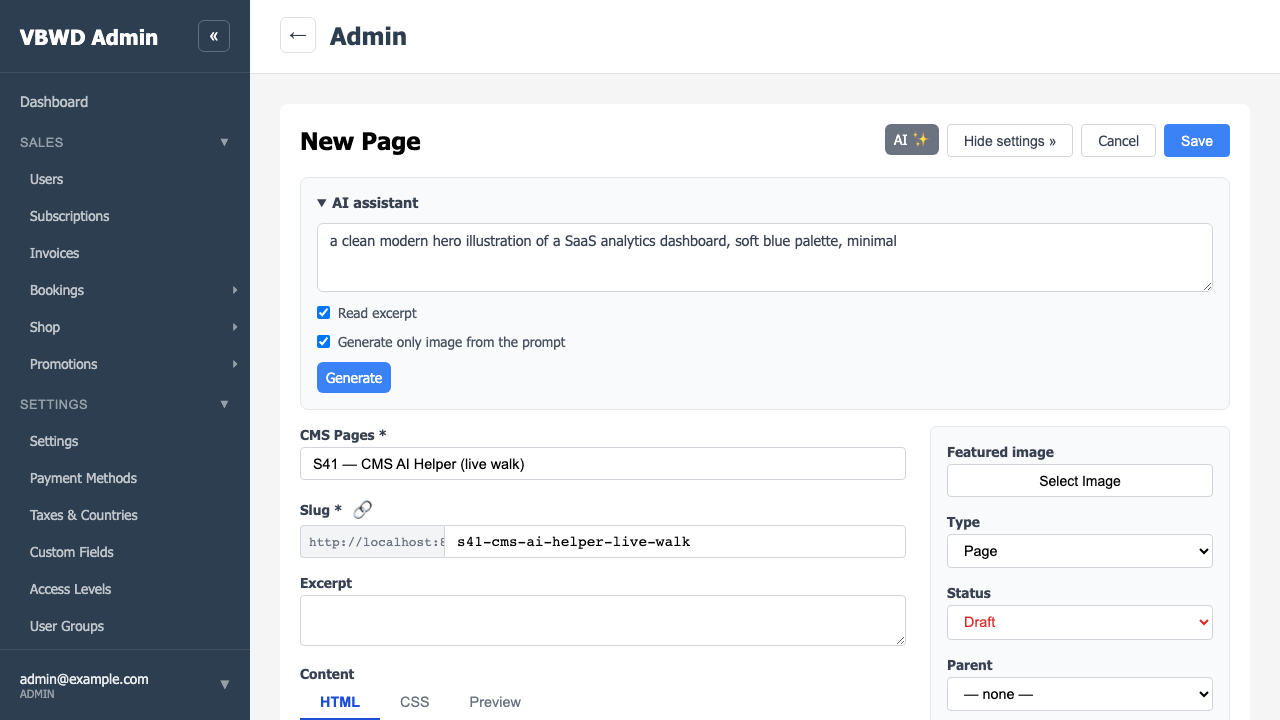
Step 5 — The same image now in the global gallery
At/admin/cms/images, the FLUX-generated images (1024×1024) are present in the global Image Gallery, uploaded by the backend via CMS’s own CmsImageService.upload_image — persisted immediately, before the post is saved. Observed: the AI images are real entries in the shared gallery.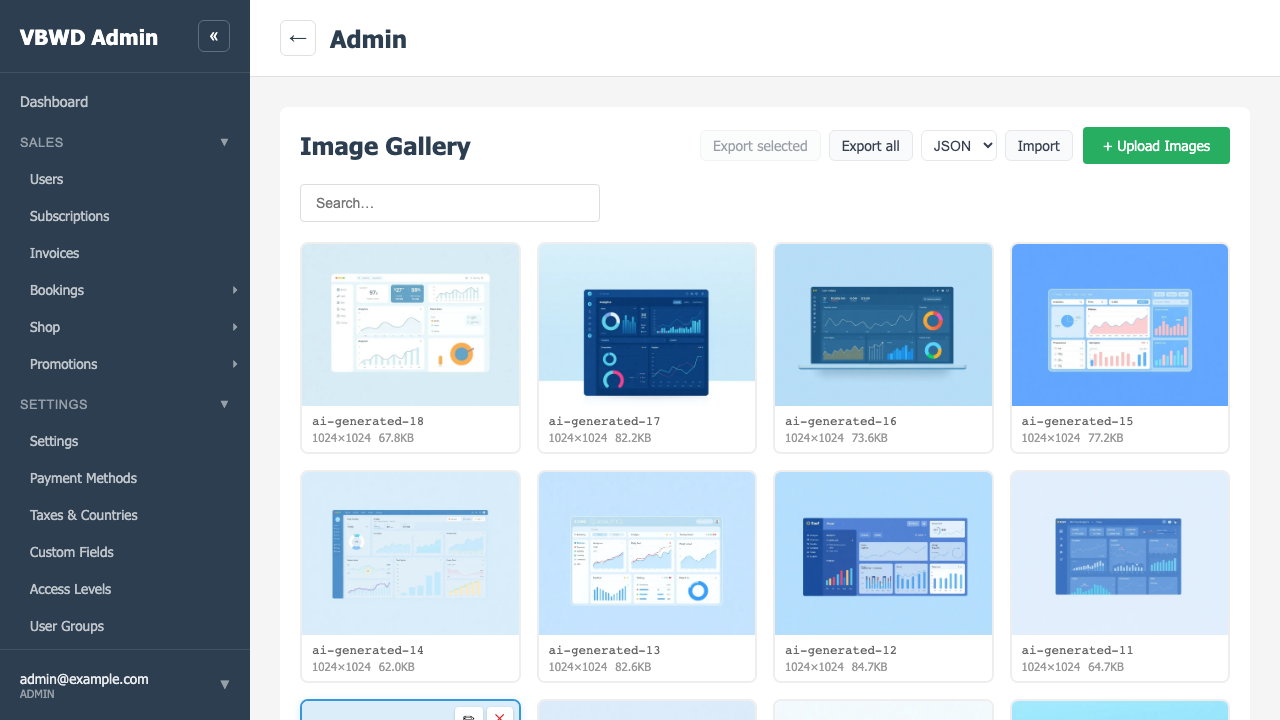
Step 6 — The “Override styles” headline prompt
The headline live test — “make me a page which looks like a polished blog post about VBWD. Override styles” — drives the Restyle action (manifestresponse_fields: {source_css, content_html}). Observed: HTTP 200 from /generate; the model returned a source_css stylesheet; no API key in the payload.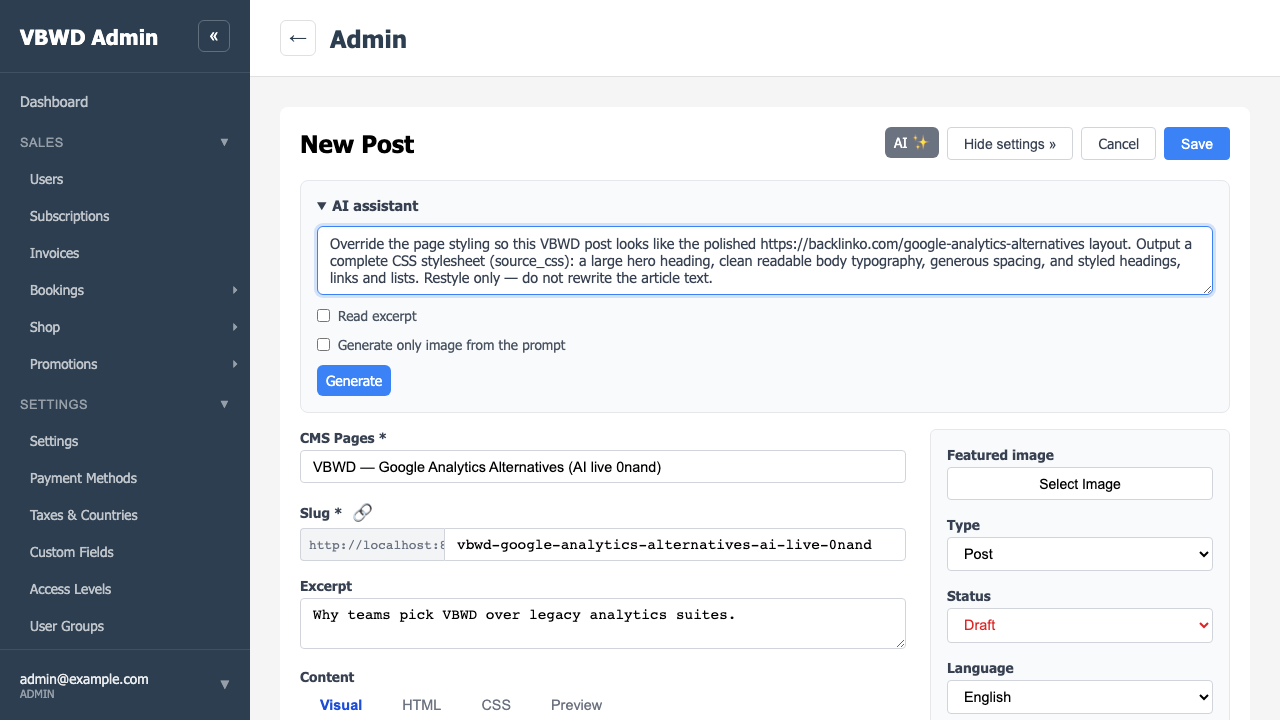
Step 7 — The editor body (HTML) tab with the AI article
The walkthrough ran the article action on a post (TipTap/Visual body editor), then the restyle. Observed: the AI article lands in the editor body and persists on Save —content_html = 1,633 chars on the saved post (admin-API verified).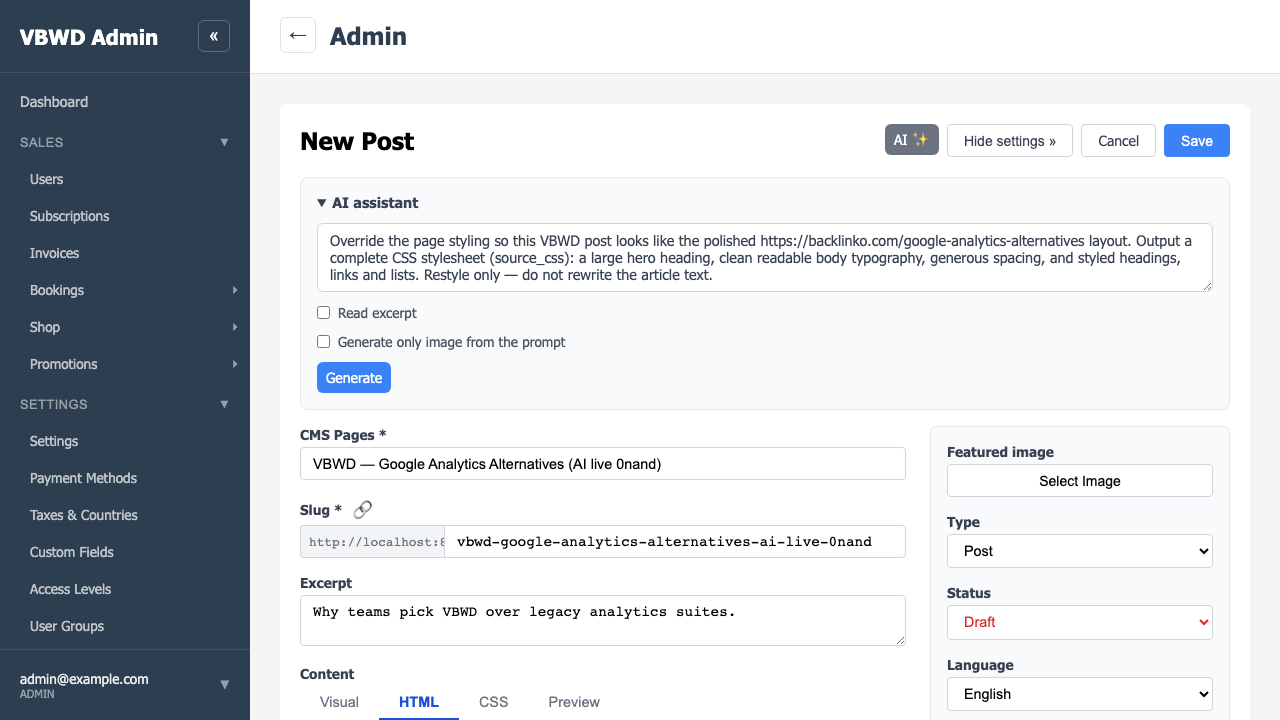
Step 8 — The generated source_css (CSS tab)
The CSS tab holds the model-generated override stylesheet (reset, hero heading, body typography, spacing, links/lists). Observed:source_css populated and, after Save, persisted on the post (verified via the public API).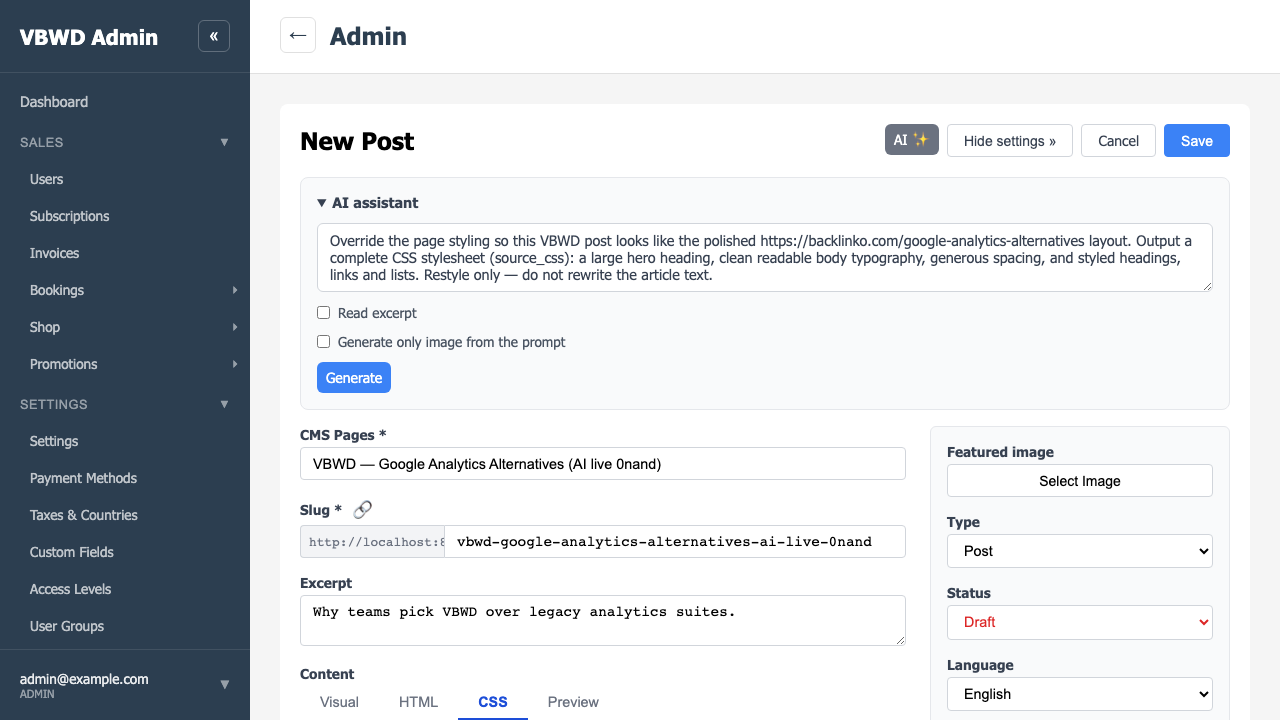
Step 9 — Save & publish
The post is set to Published and saved. Observed: the post persists with a slug andstatus: published — the full round-trip, live.